Saturday, October 08, 2011

Custom Camera Shutter and Letterbox Effects for Windows Movie Maker 6.0 (Updated)

Preview Blaine's Letterbox EffectsUpdated! This package has been updated with a camera shutter effect and white letterbox bars. Enjoy!

There have been lots of requests on the forums for a letterbox/widescreen effect which adds bars to the top and bottom of your video. Well, I went one step farther and added a couple more effects that let you have the bars appear and disappear. Here's a sample video of the moving letterbox effects.

Note: These effects take advantage of the effects architecture of Windows Movie Maker 6.0 and therefore will not work in XP. There are other solutions for XP such as a letterbox title.

There are two installers depending on whether you are running WMM 6.0 on a 64-bit or 32-bit version of Windows. The installer will put the necessary files into, C:\Program Files\Movie Maker\Shared.
Windows Movie Maker 6.0:
Blaine's Letterbox Effects (64-bit)
Blaine's Letterbox Effects (32-bit)

After installing, you'll have new effects called:
  • Camera Shutter - quick in and out (New)

  • Letterbox - static letterbox in black

  • Letterbox (In) - adds letterbox in black

  • Letterbox (Out) - removes letterbox in black
  • Letterbox White - static letterbox in white (New)

  • Letterbox White (In) - adds letterbox in white (New)

  • Letterbox White (Out) - removes letterbox in white (New)
  • Blaine's ASCII Text Effects for Windows Movie Maker 6.0 (Updated!)

    Blaine's ASCII Text EffectUpdated! This package has been updated with 3 different effects (Text, Binary and Japanese). Enjoy!

    Have you heard of ASCII Art? It's a method of drawing pictures using just the characters on your keyboard. How cool would it be if you could apply an effect in Windows Movie Maker to have your photos or videos instantly converted to ASCII Art? Well with my latest ASCII Text effects you can do it very easily.

    A couple notes:
    These effects require a registered copy of Rehan's ShaderTFX add-on. It will also work if you are still within the trial period of ShaderTFX. If you've never installed ShaderTFX before, follow the directions and test that his transitions and effects work first. If you've already installed and registered a copy of ShaderTFX, you can skip these steps.

    For a preview of what these effects look like, check out Blaine's ASCII Text Effects (Updated)

    For the new effects, there are two installers depending on whether you are running 64-bit or 32-bit version of Windows. The installer will put the necessary files into, C:\Program Files\Movie Maker\Shared.
    Prerequisite: Rehan's ShaderTFX add-on (registered or unexpired!).

    Windows Movie Maker 6.0:
    Blaine's ASCII Text Effects (64-bit) Installer
    Blaine's ASCII Text Effects (32-bit) Installer

    After restarting Windows Movie Maker, you should have three new effects called:
  • ASCII Binary - Uses just zeroes and ones

  • ASCII Japanese - Uses Japanese katakana symbols

  • ASCII Text - Uses letters, numbers and symbols


  • Just apply one of these effects to your video like any other effect. Often you may want to apply a 'Brightness, Increase' once or twice, or a Blur effect to your clip before the ASCII effect. Brightness added afterwards can also help.

    *Note: These effects require the architecture of WMM 6.0 and can't be made to work on versions 2.6 or earlier, nor will it work on Windows Live Movie Maker.

    Tuesday, August 02, 2011

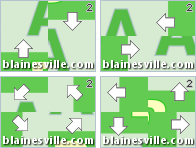
    Blaine's Custom Transition Pack 2 (MultiSlide)

    Blaine's Transition Pack 2Time for another pack of transitions for Windows Movie Maker 6.0*. I call these "MultiSlide" transitions. Check out the Transition Pack 2 - Sample Video and you'll see why.

    These transitions require the use of Rehan's ShaderTFX add-on. If you've never installed this before, follow the directions and test they work first. If you've already installed a copy of ShaderTFX (registered or unregistered), you can skip these steps. There are two installers depending on whether you are running WMM 6.0 on a 64-bit or 32-bit version of Windows. The installer will put the necessary files into, C:\Program Files\Movie Maker\Shared.
    Prerequisite: Rehan's ShaderTFX add-on.

    Windows Movie Maker 6.0:
    Blaine's Transition Pack 2 (64-bit) Installer
    Blaine's Transition Pack 2 (32-bit) Installer

    After restarting Windows Movie Maker, you should have 7 new transitions with corresponding icons:
  • MultiSlide (2 columns) - Each column slides in opposite directions

  • MultiSlide (2 rows) - Each row slides in opposite directions

  • MultiSlide (many columns) - Each column slides in opposite directions

  • MultiSlide (many rows) - Each row slides in opposite directions

  • MultiSlide (quad diagonal) - Each corner moves in a different diagonal direction

  • MultiSlide (quad orthogonal) - Each corner moves in a different compass direction

  • MultiSlide (weaving) - Lines and columns appear to weave in and out.


  • *Note: These transitions require the architecture of WMM 6.0 and can't be made to work on versions 2.6 or earlier.

    Monday, July 25, 2011

    Alias (or Simpsons) Title for Windows Movie Maker

    Preview Alias TitleIf you have ever watched the TV show Alias or The Simpsons, you've seen this title. It starts with a solid background and a title (such as the name of the location, or the words "The Simpsons"). Through that you can see the video, after a few seconds the words expand toward the screen and you can see the full video behind. Here's a sample video to help you visualize it.

    Note: This title will work in WMM 2.1 (XP) and WMM 6.0 (Vista/Win7). I've provided XML for both versions in the installers.

    There are two installers depending on whether you are running on a 64-bit or 32-bit version of Windows. The installer will put the necessary files into, C:\Program Files\Movie Maker\Shared.
    Blaine's Alias Title (64-bit)
    Blaine's Alias Title (32-bit)
    To use the new title:
    Go to 'Tools' > 'Titles and Credits' > 'Title on the selected clip'.
    Type your text in the first box.
    Click on 'change the title animation'.
    Under your list of one line titles, find the new animation:
  • Alias Title

  • As with other titles, you can change the font and other styling attributes. For the best results, pick a big, bold font like Arial Black. Note: the color you choose for the font will actually be the color of the background, since the video and text are reversed.
    Finally, click 'Done'.

    A couple additional things you might want to do. If you want the title to take longer, stretch it to the right. I added the 'Fade In from White' effect to the video so that the text would start white.

    Note: The latest versions of Movie Maker do not allow customization, so this does require a classic version of Windows Movie Maker. If you are on Windows 7, you can install WMM 6.0.

    Sunday, June 19, 2011

    Custom Camcorder Overlay Title for Windows Movie Maker

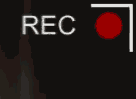
    Preview Camcorder Title OverlayI thought it would be fun to create an overlay that would look like you were recording through a camcorder. The overlay has a battery icon, a red recording symbol and the word 'REC' which flashes in the corner. As you can see from the sample video, I've created widescreen (16:9) and fullscreen (4:3) versions.

    Note: These titles will work in WMM 2.1 (XP) and WMM 6.0 (Vista). I've provided XML for both versions in the installers.

    There are two installers depending on whether you are running on a 64-bit or 32-bit version of Windows. The installer will put the necessary files into, C:\Program Files\Movie Maker\Shared.
    Blaine's Camcorder Overlay Title (64-bit)
    Blaine's Camcorder Overlay Title (32-bit)
    To use the new title:
    Go to 'Tools' > 'Titles and Credits' > 'Title on the selected clip'.
    Click on 'change the title animation'.
    Under your list of one line titles should be two titles:
  • Camcorder Overlay (16:9)

  • Camcorder Overlay (4:3)

  • Choose the one that matches your project, then click 'Done'.
    Stretch the title so that it extends for the length of your video.