Sunday, February 27, 2011

Blaine's Custom Cartoon Effects

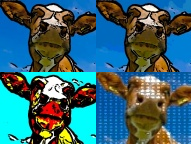
Blaine's Cartoon EffectsThe following effects can be used to give your photos and videos a cartoon look. There are 3 different "cartoonify" effects plus an additional "half tone" effect which can be applied as well. These effects work with Windows Movie Maker 6.0 (either under Vista or Windows 7).

To see an example of the effects, check out the Sample Video of Blaine's Cartoon Effects

To install the Cartoon Effects into Windows Movie Maker, you have a choice of installers depending on whether you are running WMM 6.0 on a 64-bit or 32-bit version of Windows. Pick the correct installer and it will put the necessary files into C:\Program Files\Movie Maker\Shared.

Windows Movie Maker 6.0:
Blaine's Cartoon Effects (64-bit) Installer
Blaine's Cartoon Effects (32-bit) Installer

After restarting Windows Movie Maker, you should have 4 new Cartoonify effects with corresponding icons:
  • Cartoonify, #1 through #3 - The colors are flattened and edges are highlighted in black.

  • Cartoonify, Half Tone - This gives an additional effect similar to a comic book printing


  • For a clip or image, pick one of the 3 cartoonify effects (#1, #2 or #3). If you like the half tone effect, apply that next to the same clip. Sometimes you may find that you need to brighten the clip or add a little blurring first. Play around with the effects until you get something you like.

    *Note: These transitions require the architecture of WMM 6.0 and can't be made to work on versions 2.6 or earlier.

    Tuesday, February 01, 2011

    Custom Spin and Zoom Effects

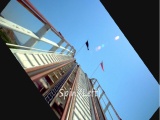
    'Spin and Zoom Effects' Video SampleThere was a request on the forums for variations on some of the standard Windows Movie Maker effects for spinning and zooming.

    Take a look at the video and if that is something you would like, click through to the post for the Custom Spin and Zoom Effects. Incidentally these are only for Windows Movie Maker 6.0 and won't work on WMM 2.x or Windows Live Movie Maker (WLMM).

    Saturday, January 29, 2011

    Blaine's Film Looks Effects for Windows Movie Maker

    Blaine's Film Looks EffectsThe following effects can be used to give your video more of a "film look". There are 9 different film looks available. These effects work with Windows Movie Maker 6.0 (either under Vista or Windows 7).

    To see a side-by-side comparison of each of the effects, check out Sample Video of Blaine's Film Look Effects

    To add the Film Looks Effects to Windows Movie Maker, there are two installers depending on whether you are running WMM 6.0 on a 64-bit or 32-bit version of Windows. The installer will put the necessary files into C:\Program Files\Movie Maker\Shared.

    Windows Movie Maker 6.0:
    Blaine's Film Looks (64-bit) Installer
    Blaine's Film Looks (32-bit) Installer

    After restarting Windows Movie Maker, you should have 9 new Film Look effects with corresponding icons:
  • Film Look - Bleach Bypass - simulates a common film printing process that results in higher contrast, lower saturation.

  • Film Look - Contrast - a higher contrast film look.

  • Film Look - Desaturation - a lower saturation film look.

  • Film Look - Enhance Colors - 6 color profile enhancements.


  • *Note: These transitions require the architecture of WMM 6.0 and can't be made to work on versions 2.6 or earlier.
    Saturday, January 01, 2011

    Blaine's Custom Transitions Pack 1 Released (Windows Movie Maker 6.0 only)

    Blaine's Transition Pack 1As a gift to you, I'm releasing a pack of new transitions for Windows Movie Maker 6.0*. These transitions require the use of Rehan's ShaderTFX add-on. If you've never installed this before, follow the directions and test they work first. If you've already installed a copy of ShaderTFX (registered or unregistered), you can skip these steps.

    For a preview of what is included in the transition pack, check out this Transition Pack 1 - Sample Video

    For the new transitions pack, there are two installers depending on whether you are running WMM 6.0 on a 64-bit or 32-bit version of Windows. The installer will put the necessary files into, C:\Program Files\Movie Maker\Shared.
    Prerequisite: Rehan's ShaderTFX add-on.

    Windows Movie Maker 6.0:
    Blaine's Transition Pack 1 (64-bit) Installer
    Blaine's Transition Pack 1 (32-bit) Installer

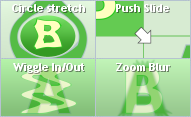
    After restarting Windows Movie Maker, you should have 13 new transitions with corresponding icons:
  • Circle Stretch - The second clip appears in a circle and stretches out to replace the first clip.

  • Push Slide - These transitions push the existing clip out of the way. They can go in any of the 8 compass directions.

  • Wiggle In/Out - Either or both of the clips will transition in a wavy, wiggly pattern.

  • Zoom Blur - The first clip zooms toward the viewer and blurs to reveal the second clip.


  • *Note: These transitions require the architecture of WMM 6.0 and can't be made to work on versions 2.6 or earlier.
    Sunday, December 12, 2010

    Compositing and Translucency Transitions for Windows Movie Maker (Re-released)

    Blaine's Custom BlendsI'm rereleasing my Compositing and Translucency transitions. These new installers will work for either 32-bit or 64-bit versions of WMM 6.0 (Vista) as well as WMM 2.x under XP. The Vista versions require you to download Rehan's ShaderTFX add-on; XP does not. Please follow the instructions for your specific version of Movie Maker.

    Click here, for a sample video of Compositing and Translucency Transitions.
    Windows Movie Maker 6.0 (64-bit):
    You must first install the latest Direct X Runtimes and then Rehan's ShaderTFX (64-bit). You don't need a registered copy, just the trial will work. Verify that those new transitions are working as expected.
    Next, run the Blaine Blends (64-bit) Installer

    Windows Movie Maker 6.0 (32-bit):
    The instructions are similar to the 64-bit version. You must first install the latest Direct X Runtimes and then Rehan's ShaderTFX (32-bit). Verify that those new transitions are working as expected.
    Next, run the Blaine Blends (32-bit) Installer

    Windows Movie Maker 2.x (XP):
    If you have Windows Movie Maker 2.x, ShaderTFX is not needed. Just run the Blaine Blends (32-bit) Installer

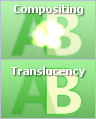
    After restarting Windows Movie Maker, you should have 12 new transitions with corresponding icons:
  • Compositing (A add B) - for best results, one clip should be on a black background. Things like explosions, flames, snow fall, raindrops, etc. work best.

  • Show A, Show B - these just show clip A or clip B respectively. These are useful when you want to cut away to another clip without affecting the overall timing of your main clip.

  • Translucency 10% through 90% - these blend the two clips so you can see both at the same time.