Sunday, September 02, 2007

Custom TV Overlay for Windows Movie Maker

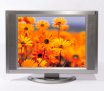
Preview TV Overlay TitleOne of the neat things you can do with custom titles is to resize the video and overlay an image. Using this technique, you can easily overlay an image of a TV screen, for example. (Click here for a sample video with a TV overlay).

Note: This title has been designed to work with either WMM 2.1 (XP) or WMM 6.0 version. It also works whether your project has a 4:3 or 16:9 aspect ratio.

There are two installers depending on whether you are running on a 64-bit or 32-bit version of Windows. The installer will put the necessary files into, C:\Program Files\Movie Maker\Shared.
Blaine's TV Overlay Title (64-bit)
Blaine's TV Overlay Title (32-bit)
To use the new title
  • Go to 'Tools' > 'Titles and Credits' > 'Title on the selected clip'.

  • Click on 'change the title animation'.

  • Under your list of one line titles should be a new one called TV Overlay

  • Pick it then click 'Done'.

  • Stretch the title so that it extends for the length of your clip.

  • Thursday, August 30, 2007

    Custom Contrast Effects For Windows Movie Maker 6.0

    Preview Blaine's Contrast EffectsWindows Movie Maker should have come with some standard effects to decrease/increase the contrast of your video. However, since it doesn't, I had to create some of my own.

    Note: These effects take advantage of the effects architecture of Windows Movie Maker 6.0 and therefore will not work in XP.

    There are two installers depending on whether you are running WMM 6.0 on a 64-bit or 32-bit version of Windows. The installer will put the necessary files into, C:\Program Files\Movie Maker\Shared.
    Windows Movie Maker 6.0:
    Blaine's Contrast Effects (64-bit)
    Blaine's Contrast Effects (32-bit)
    After installing, you'll have a couple new effects for decreasing contrast and a couple for increasing contrast. If you need a stronger effect, apply the effect several times. You can also customize the .xml if you want other contrast settings. Enjoy!

    Monday, June 04, 2007

    Custom Bubble Warp Effect for WMM 6.0

    Preview Blaine's Bubble Warp EffectI was playing around with Windows Movie Maker 6.0 and came up with this custom "Bubble Warp" effect. It's rather subtle and looks best when applied to pictures with short durations. If you apply it to video or to longer duration photos, you may not even notice the effect.

    Note: This effect takes advantage of the effects architecture of Windows Movie Maker 6.0 and therefore will not work in XP.

    There are two installers depending on whether you are running WMM 6.0 on a 64-bit or 32-bit version of Windows. The installer will put the necessary files into, C:\Program Files\Movie Maker\Shared.
    Windows Movie Maker 6.0:
    Blaine's Bubble Warp Effect (64-bit)
    Blaine's Bubble Warp Effect (32-bit)
    After installing, you'll have a new effect called "Blaine's Bubble Warp". Enjoy!

    Saturday, May 26, 2007

    Custom Color Fade Effects for Windows Movie Maker 6.0

    Preview Blaine's Color Fade EffectsWindows Movie Maker comes with standard effects to apply a grayscale or sepia tone effect to your pictures or video, but one thing it lacks is an easy way to have video gradually fade to or from grayscale or sepia to full color. I've created a package of custom effects that let you add this ability to Windows Movie Maker 6.0.

    There are two installers depending on whether you are running WMM 6.0 on a 64-bit or 32-bit version of Windows. The installer will put the necessary files into, C:\Program Files\Movie Maker\Shared.
    Windows Movie Maker 6.0:
    Blaine's Color Fade Effects (64-bit)
    Blaine's Color Fade Effects (32-bit)
    After installing, you'll have the following new color fade effects:
  • Grayscale (Color In)

  • Grayscale (Color Out)

  • Sepia (Color In)

  • Sepia (Color Out)

  • Note: These effects take advantage of the effects architecture of Windows Movie Maker 6.0 and therefore will not work in WMM 2.x.

    Saturday, April 21, 2007

    Custom Dreamy Look Title Overlay for Windows Movie Maker

    Preview Dreamy Look Title OverlayI've just reworked my prior "Dreamy Look" overlay so it works with either WMM 2.1 (XP) or WMM 6.0. Here's a sample Dreamy Look Video

    There are two installers depending on whether you are running on a 64-bit or 32-bit version of Windows. The installer will put the necessary files into, C:\Program Files\Movie Maker\Shared.
    Blaine's Dreamy Look Title (64-bit)
    Blaine's Dreamy Look Title (32-bit)
    To use the new title
  • Go to 'Tools' > 'Titles and Credits' > 'Title on the selected clip'.

  • Type the text you want to appear below the photo as a caption or, if you don't want any text, type a single space.

  • Click on 'change the title animation'.

  • Under your list of one line titles should be a new one called Dreamy Look

  • Pick 'Dreamy Look', then click 'Done'.

  • Stretch the title so that it extends for the length of your video.

  • You might want to apply the "Fade In From White" and "Fade Out To White" effects to your clip, so that it starts and ends on a full white frame.