Sunday, June 19, 2011

Custom Camcorder Overlay Title for Windows Movie Maker

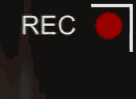
Preview Camcorder Title OverlayI thought it would be fun to create an overlay that would look like you were recording through a camcorder. The overlay has a battery icon, a red recording symbol and the word 'REC' which flashes in the corner. As you can see from the sample video, I've created widescreen (16:9) and fullscreen (4:3) versions.

Note: These titles will work in WMM 2.1 (XP) and WMM 6.0 (Vista). I've provided XML for both versions in the installers.

There are two installers depending on whether you are running on a 64-bit or 32-bit version of Windows. The installer will put the necessary files into, C:\Program Files\Movie Maker\Shared.
Blaine's Camcorder Overlay Title (64-bit)
Blaine's Camcorder Overlay Title (32-bit)
To use the new title:
Go to 'Tools' > 'Titles and Credits' > 'Title on the selected clip'.
Click on 'change the title animation'.
Under your list of one line titles should be two titles:
  • Camcorder Overlay (16:9)

  • Camcorder Overlay (4:3)

  • Choose the one that matches your project, then click 'Done'.
    Stretch the title so that it extends for the length of your video.

    Thursday, May 26, 2011

    Custom Flash Transitions for Windows Movie Maker 6.0

    Blaine's Flash TransitionsI had a request recently in the forums for a Flash transition that would rapidly flash between two clips. These transitions come with a choice of 3 different flash speeds (fast, medium and slow).

    The transitions require the use of Rehan's ShaderTFX add-on. If you've never installed this before, follow the directions on his website and test they work first. If you've already installed a copy of ShaderTFX (registered or unregistered), you can skip these steps.

    For a preview of what the flash transition looks like, check out this Blaine's Flash Transitions in Action.

    There are two installers depending on whether you are running WMM 6.0 on a 64-bit or 32-bit version of Windows. The installer will put the necessary files into, C:\Program Files\Movie Maker\Shared.
    Prerequisite: Rehan's ShaderTFX add-on.

    Windows Movie Maker 6.0:
    Blaine's Flash Transitions (64-bit) Installer
    Blaine's Flash Transitions (32-bit) Installer

    After restarting Windows Movie Maker, you should have 3 new transitions with corresponding icons:
  • Flash (Fast)

  • Flash (Medium)

  • Flash (Slow)
  • Sunday, April 03, 2011

    Custom Pixelate Effects for Windows Movie Maker 6.0

    Blaine's Pixelate EffectsThe standard pixelate effect changes from no pixelation to full pixelation over time. I had a request of a version of the pixelation effect that has one level of pixelation and doesn't vary over time. So I've provided a set of 5 pixelation effects with sizes of 10, 20, 30, 40 and 50.
    Steps to install:
    1) Figure out if you are running a 64-bit or 32-bit version of Windows.
    2) Pick the matching installer.
    Blaine's Pixelate Effects (64-bit)
    Blaine's Pixelate Effects (32-bit)
    The effects will get installed in C:\Program Files\Movie Maker. After restarting WMM 6.0, you'll have five new effects in various pixelation sizes.

    Note: These effects will not work with the older 2.x versions of Movie Maker.

    Saturday, April 02, 2011

    Custom Resize Effects for Windows Movie Maker 6.0

    Blaine's Resize EffectsI'm rereleasing these effects with a pair of installers, in case you have a 64-bit version of Windows

    When dealing with pictures and videos in different sizes, it's often useful to be able to stretch or squash the clips to fit within the screen. You might also want to crop the edges or add a border. The following package of 'Resize' effects lets you do all those things. Preview a video of the 'Resize' effects
    Steps to install:
    1) Figure out if you are running a 64-bit or 32-bit version of Windows.
    2) Pick the matching installer.
    Blaine's Resizer Effects (64-bit)
    Blaine's Resizer Effects (32-bit)
    The effects will get installed in C:\Program Files\Movie Maker. After restarting WMM 6.0, you'll have a several new effects for adding borders (black or white), cropping, stretching, squashing and fitting to screen.

    These were previously discussed on Movie Makers Forum about Resize Effects

    Note: These effects will not work with the older 2.x versions of Movie Maker.

    Sunday, March 20, 2011

    Built-in Icons for Your Custom Transitions and Effects (in WMM 6.0)

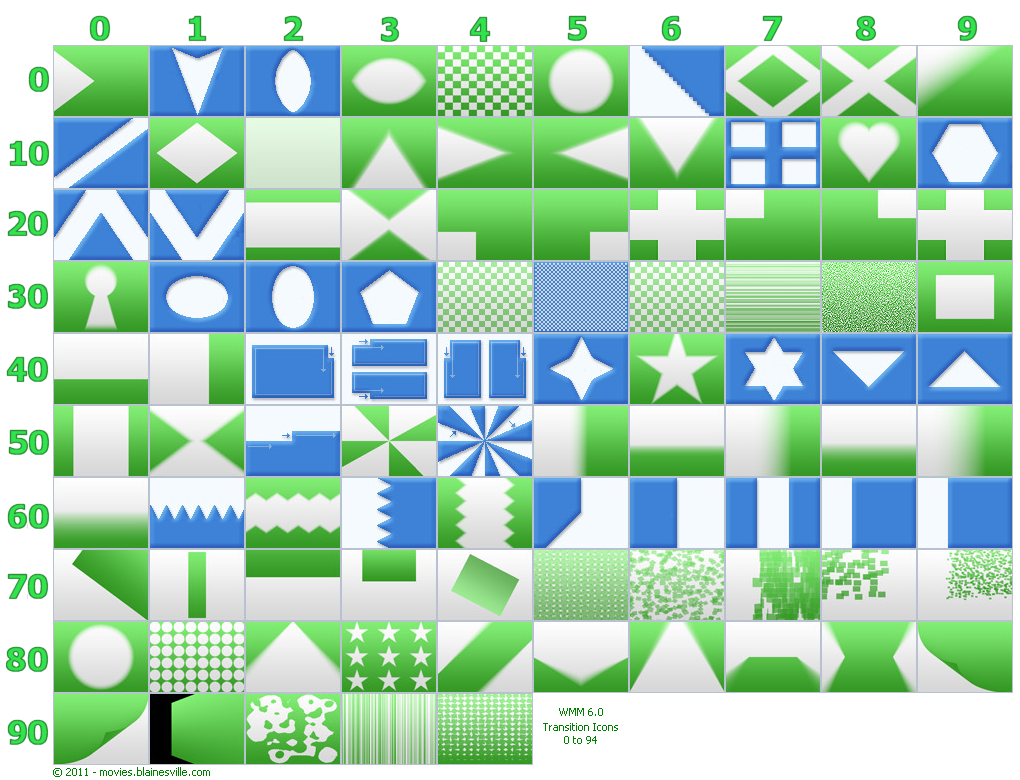
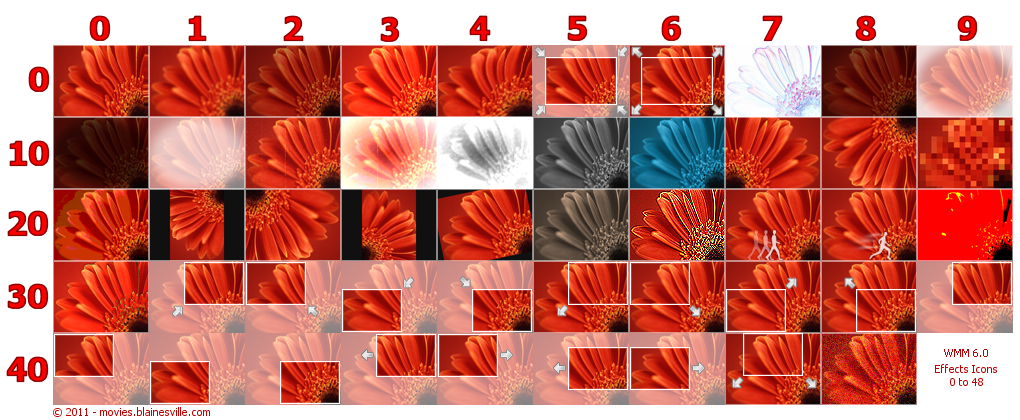
    First, a disclaimer. I'm not providing any new transitions or effects in this post. This is an informational post for anyone creating their own custom Windows Movie Maker 6.0 transitions and effects that wants to use one of the built-in icons already inside of the program rather than having to design their own. WMM 6.0 has 95 built-in icons for transitions and 49 built-in icons for effects. But unless you know what they are, it's a bit of trial and error to pick one that matches your custom transition or effect.

    For the transitions, there are 95 icons (0 to 94). Click on the picture below to see a bigger image. The icon number will be the sum of the row number and the column number.
    WMM6 Transition Icons

    For the effects, there are 49 icons (0 to 48). As with transitions, the icon number will be the sum of the row number and the column number.
    WMM6 Effect Icons

    By the way, I previously posted on the Transition Icons and Effect Icons in Windows Movie Maker 2.x, if you are still looking for those.